Advanced Features
Cleaning the Thermostat Screen
 Click to expand for more information
When you select the Clean Screen option, the screen is locked to prevent accidental changes to the thermostat while you clean the screen.
-
Touch MENU.
-
Scroll to and select Preferences.
-
Select Display.
-
Select Clean Screen.
A prompt asks if you want to clean the screen for 30 seconds. -
Touch Yes. A countdown timer displays elapsed time until the screen is reactivated.
Do NOT spray any liquid directly on the thermostat. Spray liquids onto cloth, then use the damp cloth to clean the screen. Use water or household glass cleaner. Avoid abrasive cleansers.
Screen Lock setting
Click to expand for more information
You can adjust security options to prevent unauthorized changes to system settings.
-
Touch MENU.
-
Scroll to and select Screen Lock.
Screen Lock mode options
-
Unlocked: Full access allowed.
-
Partially locked: Only temperature can be changed.
-
Fully locked: No access allowed.
There is an option in the SCREEN LOCK menu to require a passcode to change the Screen Lock setting. If you choose this option, the thermostat will provide a passcode. Make sure to save this.
Viewing Dealer information
Click to expand for more information
Check dealer information if you need to contact your installer for maintenance, repairs, or upgrades.
-
Touch MENU.
-
Scroll down and select My Pro.
This menu option will only appear if the contractor had entered this information.
Auto Changeover Operation
Click to expand for more information
Auto changeover is available if the thermostat is configured for at least 1 Heat stage and 1 Cool stage, and the installing Pro has enabled Auto Changeover.
When configured this way, you can select “Auto” as one of the options under “System mode”.
The differential is the minimum number of degrees the temperature needs to rise or fall before switching from Heat to Cool while in auto changeover mode. Example: With a differential of 3, if heat and cool were both set for 70, and heat had been used last, the temperature would need to rise at least 3 degrees above the heat set point before the thermostat would turn on cooling. Then it would run cooling down to set point and cycle cooling on and off to maintain set point. The temperature would then need to drop at least 3 degrees below the cool set point before heat could come on.
If the AC is used for dehumidification then we enforce an additional temp drop below the over-cooling amount, prior to switching back to heat.
Em Heat and Auxiliary Heat Operation
Click to expand for more information
Auxiliary Heat:
Auxiliary Heat runs as backup to the heat pump. It runs with the heat pump when:
-
The thermostat is set to Heat mode.
-
The Backup Heat is set to electric .
-
Load conditions determine Backup Heat is needed.
Emergency Heat:
Emergency Heat runs when you manually switch the thermostat to the Em Heat mode. When the thermostat is in Emergency Heat mode, the heat pump is locked out.
Emergency Heat mode is only available when the thermostat is set to control a heat pump
From the home screen touch Mode. You can set the thermostat to Heat, Off, Cool, Emergency Heat, or Auto. (Auto mode may not be available based on installer settings.)
When the thermostat is set to Em Heat mode, the heat pump is locked out and the Backup Heat is used to maintain the heat set point.
Adaptive Recovery (Sometimes called “Adaptive Intelligent Recovery”)
Click to expand for more information
Over time, the thermostat learns how long it takes your system to reach your programmed temperature setting.
The thermostat turns on the heating/cooling system early and assures that the programmed temperature setting is reached at the programmed time regardless of weather conditions. For example, if the Wake program period is set to 6:00 am with a heat setting of 70 degrees, the heat will turn on before 6:00 am, so the temperature is 70 degrees at 6:00 am. The thermostat displays "In Recovery” above the indoor temperature when it turns the system on early.
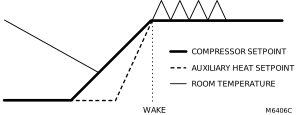
Adaptive Recovery calculates the recovery ramp based on how far the room temperature is away from the temperature setting, previous equipment performance and weather history, allowing the thermostat to start recovery at the optimal time so it can reach the programmed temperature setting at the programmed time. The thermostat uses two recovery ramps when set up to control a heat pump system; one ramp for the compressor and one ramp for the auxiliary heat. Once the room temperature intersects the compressor ramp, the compressor turns on until the set point is reached. If the room temperature does not rise quickly enough and intersects the second ramp, the auxiliary heat turns on. It takes about one week for the thermostat to adjust to weather conditions, equipment performance and construction of the home. If the temperature setting is reached too early or too late, the ramp is adjusted for the next day's recovery.
If you prefer not to use this feature, touch Menu > Preferences > Adaptive Recovery and select Off. Then the thermostat will not start heating or cooling in advance of the comfort schedule time.
When ElitePRO™ Series Thermostat is set for commercial application it has settings for heat and cool recovery ramps rather than Adaptive Recovery and these are only adjustable by the installer.
Feels like Temperature
Click to expand for more information
“Feels Like Temperature” is a setting which takes the indoor temperature and relative humidity, as well as outdoor temperature into account so that you can optimize comfort. For example, when the relative humidity is very high, 70°F feels much warmer than it does when the relative humidity is very low. For this reason, when Feels Like Temperature is enabled, the display may show a warmer temperature reading than other thermostats do when relative humidity is high.
If you prefer not to use this feature, it can be disabled in Menu > Preferences > Display > Feels Like Temperature.
Feels Like Temperature can only be enabled when the thermostat knows the outdoor temperature
Remote Setback (Occupancy Setback / Occupancy Sensor)
Click to expand for more information
This optional energy-savings feature is set up by the installer.
The ElitePRO™ Series Thermostat allows you to use Remote Setback (sometimes referred to as Occupancy sensing or Occupancy setback). This energy-saving feature can be enabled using the internal motion sensor on select ElitePRO™ Series Thermostats, one or more wireless indoor sensors, or with an occupancy sensor that opens or closes a dry-contact switch.
During occupied periods, the occupancy sensor tells the thermostat to switch to STANDBY (Setback settings) when no one is in the room. If someone is in the room, the sensor follows the settings of the Occupied period. The occupancy sensor is ignored during unoccupied periods. If someone is in the room, the sensor follows the schedule settings set by the installer or a manual override setting (if not locked out by installer/property manager).
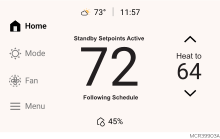
Thermostat Display shows "Standby Setpoints Active" in Remote Setback mode (no occupancy detected)
Overriding Schedules
Click to expand for more information
Commercial Use
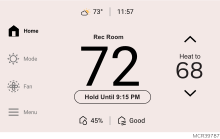
Touch 5or 6 to adjust the temperature. It will be maintained until the hold time you set.
-
To change the hold time, touch Hold Until. Then use the arrow buttons to change hold time. This time can be adjusted up to the maximum time set by the installer.
-
Touch Override to use a pre-set occupied temperature if a person uses the room during an unoccupied period. The new temperature will be maintained for 1 hour and can be adjusted up to the maximum time set by the installer.
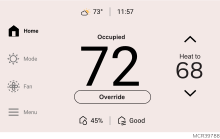
The programmed schedule will resume when the override timer expires. Touch Cancel Hold at any time to resume the program schedule.
Local Data Logs
Click to expand for more information
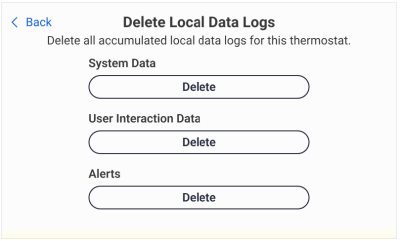
Data logs are stored on the thermostat. The Pro can access these logs via Bluetooth when on location using the Resideo Technician app. This information is helpful to the pro in diagnosing an issue, similar to how a mechanical may access car diagnostic logs on your vehicle.
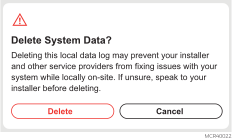
If you wish to delete these logs, you may go to MENU > PREFERENCES> DELETE LOCAL DATA LOGS.
A pro may have disabled the ability to delete these local data logs during the setup if the thermostat is part of a home warranty or service plan.