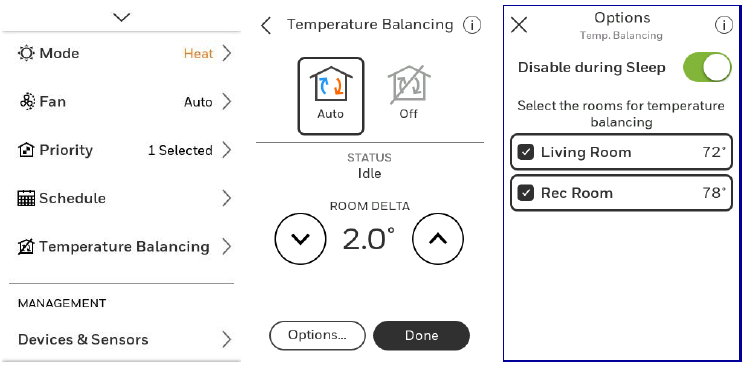
Main Menu
From Home Screen, press the Menu icon at bottom of the display (3 horizontal lines). (If this is not shown at home screen, touch screen to wake display first).
Main Menu Options
Notifications
Only displayed when there are active alerts/notifications. select “Notifications” to see details.
System Mode
(Available modes vary depending on how the thermostat was configured)
-
Heat
-
Off
-
Cool
-
Auto (see Auto Changeover Operation)
-
Em Heat (see Em Heat and Auxiliary Heat Operation)
Fan
(Fan setting not available for all system types)
- Auto (Fan only runs with a call for Heat or Cool, or if set to run with Hum, Dehum, or Vent call)
- On (fan runs continuously)
- Circulate (fan runs randomly approx. 33% of the time)
For 2-pipe and 4-pipe fan coil applications, there may be settings for auto or high, medium and low fan speeds.
Priority
If wireless indoor temperature/humidity/motion sensors are used, select which sensors are used for temperature control. Choose Active Sensor (those detecting motion) or manually select which sensors to use.
Schedule
- Create new schedule – (Set a time-based schedule)
- Disable schedule
- Reset to default Schedule
NOTE: To enable Geofencing, use the Resideo app.
Weather
Shown if connected to WiFi and the app, & ISU 1060 = Internet, displays weather forecast for up to 10 hours in 2 hour increments.
Temperatures
Shown if configured for a floor/slab sensor in ISU 1055. Shows the temperature reading and settings for Floor sensor (T10+ only).
Humidification
- View current indoor humidity level & setting
- View humidifier status (humidifying, idle, off)
- Change humidity setting
- Options change mode, change window protection setting
Dehumidification
- View current indoor Dehumidity level & setting
- View dehumidifier status (dehumidifying, idle, off)
- Change Dehumidity setting
- Options change mode, adjust high speed fan priority setting
Ventilation
- View or change mode (Auto, On, Off)
- Timed ventilation 180 minutes max
- Options lockout settings for Sleep, High Outdoor Temperature, Low Outdoor Temperature, High Outdoor Dew Point
If ISU 10005 = VNT5070E1000, VNT5200E1000, VNT5150E2000, VNT5150H2000, VNT5200E2000 or VNT5200H2000, the ventilation menu will show the CFM and wattage of the ventilator while ventilator is running.
Temperature balancing (T10+ only). Shown if ISU 3310 is enabled.
- Auto or Off.
When set to auto, you can adjust the Room delta setting from .5°F to 10°F in .5°F increments (.25°C to 5°C in .25°C increments). This will allow the T10+ to run the fan if the temperature between sensors selected under “options” in the Temperature balancing menu.
Management
Devices & Sensors
-
Add a wireless indoor or outdoor sensor
-
Identify a wireless indoor or outdoor sensor
-
Thermostat:
-
Temperature & humidity readings
-
and network name
-
IPV54 address
-
Change room name
-
Equipment Interface Module:
-
Firmware version
-
Wireless signal strength
-
Indoor Air Sensor:
-
Firmware version
-
Battery strength
-
Wireless signal strength
-
Temperature and Humidity readings
-
Occupied or unoccupied (detection of motion in room)
-
Options:
-
Rename sensor (select Room name)
-
Use motion (Allows you to choose not to allow motion to be used from a one or more sensors when “active rooms” is selected in the priority menu.
-
Motion Sensitivity (HIGH = Triggered when very little motion is detected, MEDIUM = triggered when a moderate amount of motion is detected, LOW = triggered only when a lot of motion is detected).
-
Delete (Removes that sensor from the thermostat).
-
Blink lights (Will make the light on the indoor sensor you selected blink to help identify which sensor is matched with each name in the sensor menu.)
-
Outdoor Air Sensor:
-
Firmware version
-
Battery strength
-
Wireless signal strength
-
Temperature and Humidity readings
-
Delete (this option is only shown in the "Devices & Sensors" menu when accessed via "Installer Options" menu).
Thermostat Information
-
Mac Address
-
IP Address
-
Date Code
-
Model Number
-
Build Date
-
Collection Version
-
WiFi Bootloader Version
-
WiFi Application Version
-
RedLINK Application Version
-
T10+ will show a QR code if you scroll down
Equipment Status
-
System mode
-
Heat stages (on or off)
-
Cool stages (on or off)
-
Fan on or off
-
IAQ (Hum, Dehum, or Vent) on or off
Dehumidification Away Mode
If ISU 9180 is set for dehumidification away mode, then this menu displays the dehumidification Away mode status and settings.
Dealer Information
-
Model number
-
Date code
-
Dealer company name and contact information if provided by installer. (See Installer Options Menu.)
Configuration
-
WiFi
-
Connect App
-
Connect HomeKit
-
Security
-
Preferences
-
Installer Options (See Installer Options Menu.)
Temperature balancing (T10+ model only)
If at least one wireless sensor is used, and ISU 3300 is enabled, the temperature balancing feature will run the system fan if the selected rooms have a temperature variation that exceeds the delta setting in ISU 3310.
When this feature is enabled you can select “Temperature balancing” under menu and select auto or off. When auto is selected you can:
-
Adjust the Room Delta setting (number of degrees difference between the selected sensors required to energize the system fan)
-
Open the options menu and select the sensors used or disable this feature during the sleep period.