Scheduling
Setting a Schedule On Thermostat
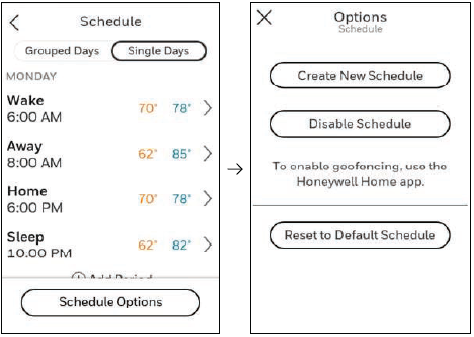
Select the MENU icon at the bottom of the home screen display. Then select Schedule.
-
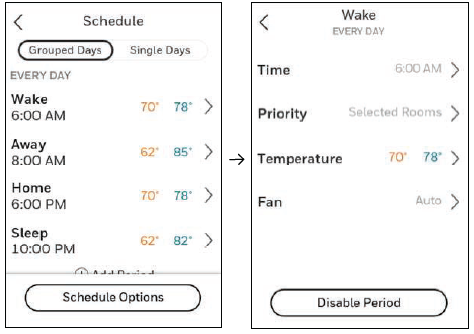
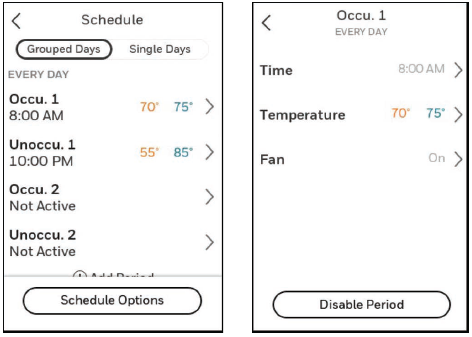
If you want all days the same, select Grouped Days.
-
Touch the period you wish to edit (Wake, Away, Home or Sleep).
Residential
Commercial
-
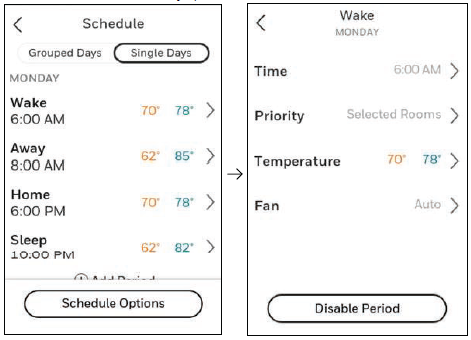
If you want all days separate, select Single Days.
-
Touch the period of the day you wish to edit (Wake, Away, Home, or Sleep). Scroll down to see additional days).
-
If you want weekdays grouped but weekend days separate, or if you do not want to use a schedule, select Schedule.
-
Touch Create New Schedule. The thermostat will then walk you through the schedule setup.
-
Touch Time to edit the time for that schedule period.
-
Touch Priority to select which sensors will be used for that period.
-
Touch Temperature to set the Heat and Cool setpoints for that period.
-
Touch Fan to select Fan On, Auto, or Circ for that period.
NOTE: To utilize Geofencing, set the schedule through the app.
Scheduling Through the App
Flexible scheduling: You can choose to use location-based temperature control (geofence/Auto Away technology), time-based scheduling, or use a combination of both to make sure your home is always comfortable.
-
Location-based temperature control: Using geofencing/Auto Away technology, the T10/T10+ Smart thermostat will automatically use your smartphone’s location, which can save energy when you leave and make your home comfortable by the time you return.
-
Smart scheduling: Adds a Sleep period to location-based temperature control.
-
Time-based scheduling: You can program a schedule where every day is different, a schedule where weekdays and weekends are different, or a schedule where every day is the same. There are four adjustable periods per day: Wake, Away, Home, and Sleep.
-
No schedule: You can also choose not to set a schedule and adjust the thermostat manually.
-
Sensor Priority: Select which sensors are used for each program period or when used manually.
-
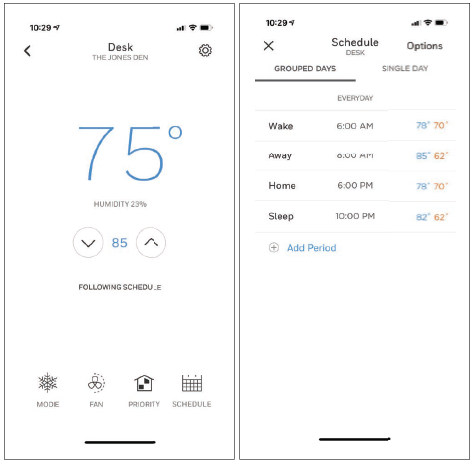
In the app, select the thermostat you wish to schedule. Then scroll down and select Schedule.
-
Select Grouped Days for all days the same or Single day if you want some days to be scheduled different than others.
-
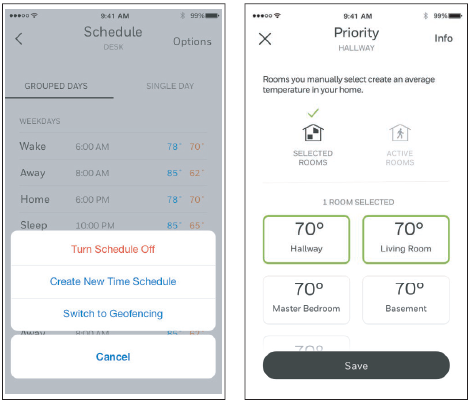
Select Options to turn schedule off, create a new time-based schedule, or switch to Geofencing/Auto Away.
-
Set priority sensor(s) for each program:
Location-Based Scheduling
When location-based temperature control is used, the thermostat active home screen display will show Using Home settings, Using Away settings, or Using Sleep settings below the room temperature.
If you set an additional Sleep period in the app, you’ll also see the Following Schedule in the upper left corner of the thermostat screen.
If you manually change the temperature when location-based temperature control is active, the new temperature will remain in effect until you cross the geofence.
To adjust the geofence boundary, follow the steps below.
-
Open the app, tap the MENU icon in the upper left corner and then tap Geofence or "Auto Away" and enable this.
-
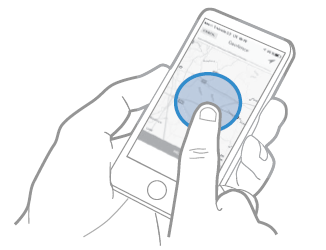
Tap Geofence Radius, and when the map and current geofence appear, touch, hold and drag the black dot to adjust the geofence boundary.
-
Tap SAVE to finish.
Schedule Override on Device
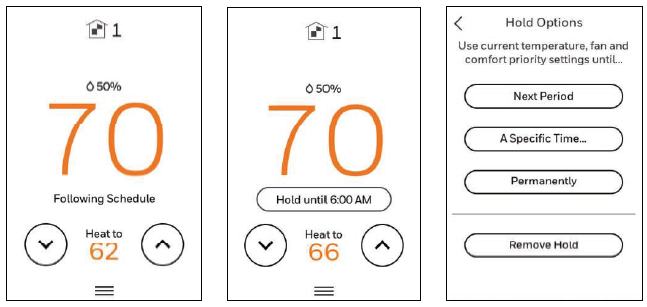
With thermostat in Heat, Cool, Auto, or Em Heat mode, press the up or down arrow to change the setpoint. (if thermostat is in auto mode, you need to press Heat to or Cool to first).
If scheduling is enabled it will say Hold until and show a time at the bottom of the screen. Touch this.
Display says Use current temperature, fan, and comfort priority settings until…
Options are:
-
Next Period
-
A Specific Time
-
Permanently
-
Remove hold
Choose the appropriate option. If you chose A Specific time, select the time you want to hold to.
Press Done to return to Home screen.