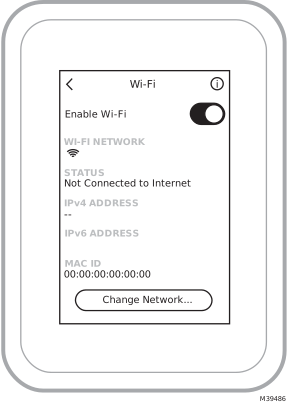
WiFi Setup
During the initial installation, after the Installer setup the thermostat will prompt you to set up WiFi and guide you through the steps. If you are setting up WiFi after the initial installation has already been done, follow the steps below:
-
Select the Main Menu icon.
Main menu icon.
-
Then select WiFi.
-
There is a slider labeled “Enable WiFi”. Make sure this is set to the right.
-
Touch Choose Network.
-
After a brief delay, the thermostat should show the available networks. Choose your home network from the list.
-
If this is a secure network, it should prompt you to “Enter WiFi password”. After a brief delay the display should show “Success! Your thermostat successfully connected to the network.” Press the OK button. NOTE: If you did not successfully connect to the network:
-
Download the First Alert or Resideo app from the App store or Google Play.
-
Open the First Alert or Resideo app. Tap SET UP NOW as shown here to continue. Tap INSTALL A DEVICE and follow the prompts to continue. The app will walk you through the rest of the setup.
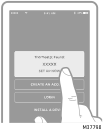
SET UP NOW screen
Connect to a Hidden WiFi Network
-
Touch MENU, then WiFi Setup.
-
Touch Other, then Select.
-
When prompted, press the screen to edit the network name.
-
Enter the network name.
Press the 5or 6buttons to change the letter or number. Press the 4button to move to the next character, or the 3button to move to the previous character. Use the 5or 6buttons at the bottom to change letter case. Press Done when complete. -
Select the appropriate network security setting, then press Select.
-
Enter the WiFi network password as explained above in “Connecting to WiFi Network”, step 6.
Unsuccessful WiFi Connection
If you are unsuccessful in connecting the thermostat to the WiFi network, you will see a Connection Failed screen. Press the 6button for other tips about this failed connection. Here are three specific reasons the connection might be unsuccessful.
For all Connection Failed screens, pressing Done will return to the Menu screen.
Invalid Password
The password you entered is invalid. Check that you have the right password and try again.
No IP Address
The thermostat was unable to obtain an IP address from the router. Verify the router is correctly set up to automatically assign IP addresses. This connection can take several minutes. If there is still no connection, remove the thermostat from the wallplate for 10 seconds, then snap it back into place.
No Internet Link
The thermostat connected to the WiFi network but was unable to establish a connection to the internet. Check the router settings and try again. Make sure the Ethernet cable is plugged into the router and try rebooting the router if necessary.